PNG%20copy%202%20(little%20touch%202).png)
Double Exposure in Camera
- Tadas Svetikas

- Sep 6, 2025
- 1 min read
Double Exposure Reflection Effect (No Photoshop Needed!)
Want to create magical reflection photos—without puddles, mirrors, or editing software? With your camera’s multiple exposure mode, you can fake stunning reflections straight in-camera.
Here’s how:
Step 1: Enable Multiple Exposure ModeLook in your camera’s shooting menu for “Multiple Exposure” (sometimes called “Image Overlay” or “Double Exposure”). Set it to On and choose 2 exposures.
Step 2: Take Your First Shot (The Subject)Photograph your subject—this could be a person, building, or landmark. Frame it normally, leaving some negative space below where the reflection will appear.
Step 3: Flip for the ReflectionFor the second shot, rotate your camera 180° and shoot the same subject upside down. Try to align it so the top of the reflection meets the base of the original image.
Step 4: Add Texture (Optional)If you want the reflection to feel more like it’s in water or glass, use the second exposure to capture ripples, glass panes, or textured surfaces instead of just flipping the subject.
My video on YouTube:




💡 Pro Tips:
Shoot against a clean sky or simple background to make the reflection stand out.
Underexpose your reflection shot slightly so it looks more natural.
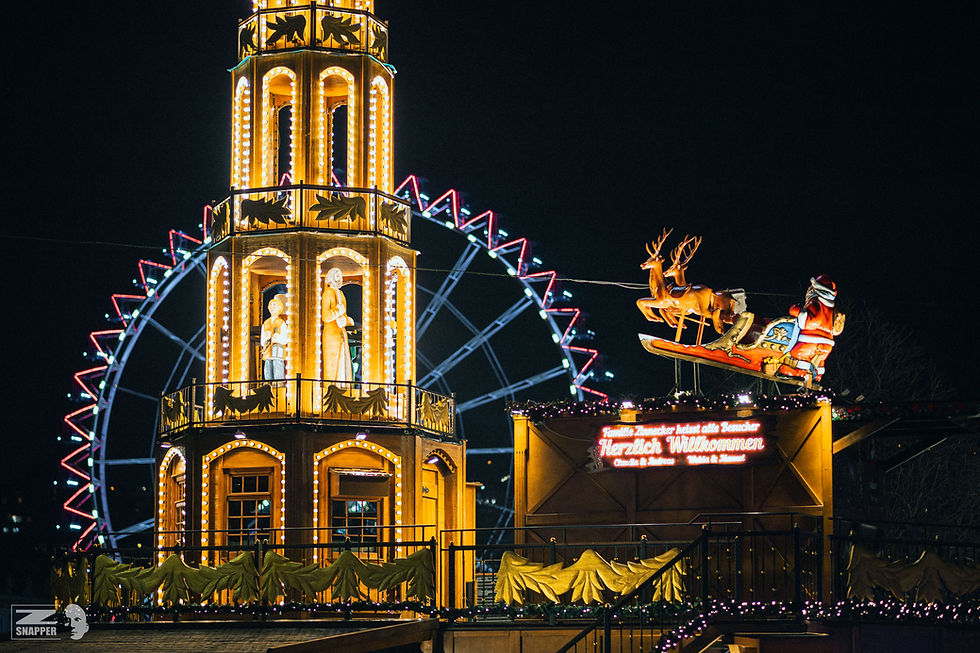
Experiment with street lights or neon signs at night for surreal mirrored effects.
100% done in-camera. No Photoshop. Just creativity.
👉 If you liked this tutorial, don’t forget to like, comment, and subscribe!


Comments